YouTube karaoke lag
SEO Title:
YouTube Karaoke Lag: How to Stop Track Delays Fast
Slug:
youtube-karaoke-lag-track-delays
Meta Description:
Fix YouTube karaoke lag with practical tips for Wi-Fi, TVs, browsers, audio, and streaming devices. Keep lyrics and music playing smoothly at home.
Excerpt:
YouTube karaoke lag can interrupt songs, delay lyrics, and make group singing frustrating. A few connection and device changes can often restore smoother playback.
YouTube Karaoke Lag: How to Stop Track Delays Fast
YouTube karaoke lag can turn a great singing session into a frustrating stop-and-start experience. The music may freeze, lyrics can fall behind, or an entire video might pause to buffer. Fortunately, most playback problems have causes you can identify and address.
Your internet connection is only one part of the equation. Wi-Fi strength, video quality, browser performance, television processing, and connected audio equipment can all affect playback. Therefore, troubleshooting works best when you examine the whole setup.
The goal is not simply to buy faster internet or replace your karaoke equipment. Instead, start with quick checks and work toward more specific fixes. This approach saves time while helping you find the actual source of the delay.
Understand What Type of Karaoke Delay You Have
Not every delay is the same. Buffering occurs when a video stops because your device cannot receive enough data quickly enough. In contrast, audio synchronization problems happen when music and video continue playing but no longer match.
Input or vocal latency creates another problem. You sing into the microphone, yet your amplified voice reaches the speakers slightly later. That issue often comes from audio processing rather than YouTube itself.
Before trying to fix YouTube karaoke lag, identify what you actually see or hear. Does the video pause and show a loading indicator? Does the music continue while the lyrics appear late, or does your microphone sound delayed?
Next, test a normal YouTube video on the same device. If ordinary videos also buffer, your connection or playback device deserves attention. However, if only your karaoke setup struggles, connected equipment or specific settings may be involved.
Write down when the problem happens. A delay that appears only during evening hours may have a different cause from one that occurs every time. Clear observations make troubleshooting faster and prevent unnecessary changes.
Check Your Internet Connection First
Streaming karaoke requires a stable internet connection. Although high speeds help, consistency matters because sudden drops can interrupt a video. Wi-Fi interference and weak signal strength can create problems even when your internet plan seems fast enough.
Move your streaming device closer to the router when practical. Walls, floors, appliances, and other obstacles can weaken wireless signals. In addition, crowded wireless networks may reduce performance when many devices use the connection simultaneously.
If YouTube karaoke lag appears during parties, check how many guests have joined your Wi-Fi. Phones may download updates, upload photos, or stream videos in the background. Consequently, your karaoke device may compete for available network capacity.
Try restarting your modem or router if the connection has become unreliable. Give the equipment enough time to reconnect fully before testing another video. A restart can clear temporary network problems, although it will not fix weak coverage or an overloaded service.
When possible, compare Wi-Fi performance with a wired Ethernet connection. If the wired device streams smoothly, your internet service may be fine. In that case, improving the wireless connection should become your priority.
Lower YouTube Video Quality When Needed
Karaoke videos usually do not require extremely high resolution. Lyrics remain easy to read at moderate video quality on many televisions. Therefore, lowering resolution can reduce the amount of data your connection needs to stream continuously.
If YouTube automatically selects a high resolution, try a lower setting. For example, moving from 4K to 1080p or 720p can reduce bandwidth demand. The visual difference may be minor when the video mainly contains lyrics and simple backgrounds.
This adjustment can reduce YouTube karaoke lag on slower or inconsistent connections. It may also help when several people share the same network. However, extremely low resolution can make small lyrics harder to read on a large screen.
Test different settings before your karaoke event. Choose the lowest resolution that still makes lyrics comfortable to follow from the singing area. Then leave that setting in place if it provides more reliable playback.
Remember that automatic quality can change during a session. YouTube may raise or lower resolution based on network conditions and device behavior. If buffering suddenly returns, check the current quality setting again.
Improve Wi-Fi Around Your Karaoke Room
Router placement can have a large impact on streaming performance. A router hidden inside a cabinet or placed at the opposite end of the home may deliver a weaker signal. Moving it to a more open location can sometimes improve reliability.
Avoid placing your router close to equipment that may create interference. Other wireless electronics and physical obstacles can affect signal quality. Moreover, large metal objects can weaken coverage in nearby rooms.
Persistent YouTube karaoke lag may indicate that your singing area has poor Wi-Fi coverage. A suitable mesh Wi-Fi system or properly positioned access point can help in larger homes. However, do not purchase additional equipment until you confirm signal strength is the problem.
Check whether your router supports multiple Wi-Fi bands. Depending on your distance and environment, one band may provide better speed while another offers better reach. Modern devices may choose automatically, but testing can reveal a more stable option.
Keep your karaoke source in a fixed position once you find a strong connection. Moving a phone or tablet around the room can change its signal quality. A stable streaming location makes performance more predictable.
Reduce Network Traffic During Karaoke
Your home network may serve many devices at once. Smart televisions, phones, computers, game consoles, security cameras, and cloud services can all transfer data. During a party, guests add even more devices to the network.
Pause large downloads before karaoke begins. Game updates, cloud backups, software installations, and high-resolution streaming can consume substantial bandwidth. Therefore, completing these activities earlier can leave more capacity for your karaoke tracks.
When troubleshooting YouTube karaoke lag, temporarily disconnect unnecessary devices or stop bandwidth-heavy applications. Then replay the same song. If playback improves, network congestion was likely contributing to the problem.
You do not need to disconnect every smart device in your home. Instead, focus on equipment that transfers large amounts of data. A smart light using minimal bandwidth is less important than another television streaming high-resolution video.
If your router provides device-priority or quality-of-service features, you may be able to prioritize your karaoke device. Settings vary by router, so follow the manufacturer’s instructions. Proper prioritization can help maintain smooth streaming when the network becomes busy.
Optimize Your Laptop or Computer
A slow computer can create playback problems even with excellent internet. Too many browser tabs, background programs, or system processes may reduce available resources. Older hardware can also struggle with high-resolution video.
Close applications you do not need during karaoke. In particular, pause programs performing downloads, cloud synchronization, or heavy processing. This gives your browser more resources for video playback.
Browser problems can sometimes resemble YouTube karaoke lag. Update your browser and restart it before an important event. If the issue continues, test another supported browser to determine whether the problem follows the software.
Extensions can also affect website performance. Ad blockers, privacy tools, video utilities, and other extensions may interfere with page behavior in some situations. Testing in a clean browser profile can help isolate the cause.
Finally, restart the computer if it has been running for a long time. A fresh start clears temporary processes and can resolve minor performance issues. Then open only the programs required for karaoke.
Troubleshoot Smart TV and Streaming Device Playback
Smart TVs offer convenient access to YouTube without a separate computer. However, television apps can occasionally become slow or unresponsive. Limited storage, outdated software, or temporary app problems may contribute to poor playback.
Start by closing and reopening YouTube. If that does not help, restart the television or streaming device. A full restart often works better than simply switching the screen off and back on.
If YouTube karaoke lag continues, check for software and app updates. Manufacturers release updates that can improve compatibility and correct performance problems. Nevertheless, avoid starting a major update immediately before guests arrive.
Compare the TV app with another source device. For example, play the same track from a laptop connected through HDMI. If the laptop works smoothly on the same network, the television app or hardware may be responsible.
Streaming sticks and boxes can also overheat or slow down. Make sure the device has ventilation and stable power. Poor power adapters or overloaded USB ports can sometimes contribute to unreliable operation.
Fix Audio and Video Synchronization Problems
Sometimes the video plays continuously, but the sound does not match the lyrics. This is different from internet buffering. Audio processing somewhere in your entertainment system may be creating the delay.
Soundbars, AV receivers, televisions, and wireless speakers can all process audio before playback. Features such as virtual surround and sound enhancement may add latency. Therefore, try a simpler audio mode when synchronization feels wrong.
YouTube karaoke lag may seem especially obvious when a lyric highlight moves before you hear the matching word. Check whether your TV or sound system offers lip-sync or audio-delay settings. Adjust them gradually while replaying a familiar section.
Bluetooth can add another layer of delay. If your streaming device sends sound wirelessly to a speaker, test a wired connection instead. Karaoke depends heavily on timing, so even modest latency can become distracting.
Keep the signal path simple whenever possible. Fewer processing stages generally mean fewer opportunities for synchronization errors. Use the television for lyrics while a suitable wired audio system handles sound if that arrangement works better.
Reduce Microphone Latency Separately
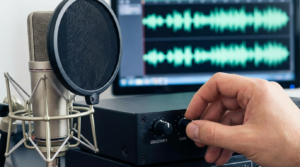
Microphone latency is often confused with streaming lag. In this case, the YouTube track plays normally, but your live voice sounds delayed through the speakers. Internet speed usually has little to do with this problem.
Route microphones directly through a karaoke mixer, karaoke machine, or suitable powered speaker. Avoid sending live microphone audio through unnecessary television processing. This can reduce the time between singing and hearing your amplified voice.
When YouTube karaoke lag seems limited to the microphone, test the track without singing. If music and lyrics remain synchronized, focus on your audio equipment rather than the network. This simple test can save significant troubleshooting time.
Wireless microphones themselves do not always create noticeable problems. However, additional Bluetooth links and digital processing can add delay. A straightforward audio path usually delivers the most natural singing experience.
Disable unnecessary vocal processing while testing. Then add echo or reverb gradually after the microphone feels responsive. This makes it easier to identify whether a specific effect contributes to latency.
Build Playlists Before the Party Starts
Searching for every song individually can create unnecessary pauses. Instead, build a YouTube playlist before guests arrive. Add popular requests, group songs, duets, and several backup choices.
A prepared playlist does not eliminate buffering, but it reduces time spent navigating between tracks. Moreover, you can test important videos in advance. This helps you identify poor-quality uploads or versions with unexpected intros.
Planning can also reduce YouTube karaoke lag caused by repeated device switching. Keep one primary source connected throughout the event rather than constantly casting from different phones. A consistent source produces a more predictable setup.
Organize songs loosely by style or energy level if you expect a long session. You can still accept requests while keeping prepared tracks ready. This approach prevents silence when nobody knows what to choose next.
Before the party, open YouTube and confirm that your account, app, and device work correctly. Test several tracks from beginning to end. Preparation cannot prevent every problem, but it eliminates many avoidable surprises.
Create a Backup Plan for Streaming Problems
Even a well-tested connection can fail unexpectedly. Internet service outages, router problems, and platform issues can happen without warning. Therefore, a backup entertainment plan is useful for any karaoke party.
Where permitted by the service and content rights, use legitimate offline features available through your chosen platform or application. Do not rely on unauthorized downloading tools. Instead, check whether your subscription or karaoke service supports offline playback.
If YouTube karaoke lag becomes impossible to resolve during a party, switch to another legal music source that you already have available. Local karaoke files, compatible discs, or an offline-capable service can keep the event moving. The exact option depends on your equipment.
You can also prepare non-streaming activities. Karaoke challenges, music trivia, and guessing games give guests something to do while the connection recovers. This prevents a technical problem from ending the evening.
Keep necessary cables and adapters nearby as well. If wireless casting becomes unreliable, a direct HDMI connection from a laptop may provide a more stable alternative. Simple backups are often more useful than complicated emergency solutions.
Use a Pre-Party Test to Prevent Problems
Run a full test in the same room where you plan to host karaoke. Use the actual television, streaming device, microphones, and speakers. A successful test on a different device does not guarantee the final system will behave identically.
Play several songs at the video quality you intend to use. Watch for buffering, dropped resolution, delayed lyrics, and audio synchronization. Then test the microphones while the music plays.
If you notice YouTube karaoke lag, change one variable at a time. First test network stability, then video quality, device performance, and audio processing. Changing everything simultaneously makes it harder to identify what solved the problem.
Try the system during the same time of day as your planned event when possible. Network performance can vary throughout the day. An evening test may reveal congestion that never appears during a quiet morning.
Finally, charge wireless equipment and restart important devices before guests arrive. Keep your source connected and ready to play. A ten-minute test can prevent much longer interruptions later.
Conclusion
Smooth YouTube karaoke depends on more than raw internet speed. Stable Wi-Fi, sensible video quality, responsive hardware, and a simple audio path all contribute to a better experience. Identifying whether you have buffering, synchronization trouble, or microphone latency is the most important first step.
When YouTube karaoke lag appears, begin with the simplest fixes. Test another video, reduce resolution, close unnecessary applications, and restart your streaming device. Then examine network congestion and audio processing if the problem continues.
Prepare playlists and test your complete setup before friends arrive. In addition, keep a legal backup option ready in case your internet connection fails. With a stable network and well-planned equipment, you can spend less time troubleshooting and more time enjoying each song.
FAQ
1. Why does karaoke on YouTube keep buffering?
Buffering often occurs when the streaming device cannot receive video data consistently. Weak Wi-Fi, network congestion, or high video resolution may contribute. Test another video and lower the playback quality to help identify the cause.
2. Will lowering video quality make karaoke smoother?
It can help because lower-resolution video requires less data to stream. Lyrics can still remain clear at moderate resolutions on many televisions. Test several settings and choose one that balances readability with stable playback.
3. Why are the lyrics ahead of the music?
Audio processing in a television, soundbar, receiver, or wireless speaker may create synchronization problems. Try disabling unnecessary sound effects and testing a wired audio connection. Lip-sync settings can also help on compatible equipment.
4. Does Bluetooth cause karaoke delays?
Bluetooth audio can introduce latency, although the amount varies between devices. This delay becomes more noticeable during karaoke because singers rely on precise timing. A wired audio connection can provide more predictable results.
5. Should I use Wi-Fi or Ethernet for streaming karaoke?
Ethernet can provide a stable connection when your device and room support it. However, strong Wi-Fi can also stream karaoke reliably. If wireless playback repeatedly buffers, testing Ethernet can help determine whether Wi-Fi is the problem.