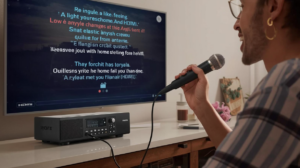
Spotify karaoke sync problems can quickly disrupt an otherwise enjoyable singing session. Lyrics may move ahead of the music, fall behind, or appear out of step with the vocals. Fortunately, several simple checks can help you identify where the timing issue begins.
Spotify provides synchronized lyrics for many songs, which makes casual singalongs convenient. However, the experience depends on your internet connection, device, audio path, and the lyric timing available for each track. Therefore, a delay does not always mean your phone or speaker has failed.
The best approach is to identify whether the lyrics, music, or audio equipment creates the delay. Once you know which part is responsible, troubleshooting becomes much easier. Start with the simplest tests before changing advanced settings or replacing equipment.
Identify What Is Actually Out of Sync
First, listen to the song without singing. Watch the displayed lyrics and compare them with the recorded vocals. If the words highlight at the wrong moment, the lyric timing itself may be responsible.
Next, determine whether your audio arrives later than the visual information. This can happen when a phone displays lyrics immediately while a wireless speaker introduces extra processing. Consequently, the words may look early even though the Spotify app is functioning normally.
Spotify karaoke sync problems can also seem worse when several devices are involved. For example, you might control playback from a phone while sending music to a television or wireless speaker. Each connection can introduce additional processing or communication delays.
Try playing the same track through your device’s built-in speaker. If the timing improves, your external audio connection deserves attention. However, if the lyrics remain mistimed, test several other songs before changing hardware.
One poorly synchronized song does not necessarily indicate a system-wide problem. Lyric timing can vary between tracks. Testing several familiar songs gives you a better picture of what is happening.
Restart Spotify and Your Playback Device
A restart is one of the fastest troubleshooting steps. Close Spotify completely rather than leaving it running in the background. Then reopen the app and play the same song again.
If the problem remains, restart your phone, tablet, computer, or television. Temporary software issues can affect app performance or communication with connected equipment. Moreover, restarting clears active processes that may be consuming system resources.
When Spotify karaoke sync problems appear suddenly after previously smooth playback, this basic reset is particularly useful. You should also restart connected speakers or streaming devices when practical. Reconnecting everything from a fresh state can resolve temporary communication problems.
Check Spotify again before changing several settings at once. If the timing returns to normal, you have avoided unnecessary troubleshooting. Otherwise, continue by examining the connection between your playback device and speakers.
Keep your setup simple during testing. Disconnect accessories that are not required for basic playback. You can reconnect them one at a time after confirming the song and lyrics work correctly.
Check Your Internet Connection
Spotify depends on a stable connection for many online features. An unreliable network can affect loading and app behavior, especially when switching tracks or displaying content. Therefore, test your connection if problems occur alongside slow loading.
Move closer to your Wi-Fi router and play the track again. Physical obstacles and distance can weaken wireless performance. In addition, network congestion may become noticeable when several household devices stream or download data.
If Spotify karaoke sync problems happen mainly during parties, guest devices may contribute to network congestion. Phones, televisions, computers, and game consoles can all use bandwidth simultaneously. Pause unnecessary downloads or high-bandwidth activities while testing.
You can also switch between Wi-Fi and mobile data when appropriate to compare performance. If one connection works noticeably better, the network may be part of the problem. Remember that mobile data usage depends on your plan and coverage.
Restarting your router may resolve some temporary connection issues. However, do not assume faster internet automatically fixes every timing problem. Bluetooth latency and incorrect lyric timing can occur even with a fast connection.
Test Spotify Without Bluetooth Audio
Bluetooth is convenient for karaoke because it removes cables. Unfortunately, wireless audio can introduce latency between your playback device and speaker. The amount of delay varies between devices and connection methods.
To test this, disconnect your Bluetooth speaker or headphones. Play the same song through your phone, tablet, or computer speakers. Watch the lyrics while listening carefully to the recorded vocals.
If Spotify karaoke sync problems disappear, Bluetooth latency is a likely contributor. A wired audio connection may provide more predictable timing for singing. Depending on your equipment, AUX, USB audio, HDMI, or another supported wired connection may be suitable.
Do not assume every Bluetooth speaker produces identical delay. Different hardware, codecs, and processing systems can behave differently. A speaker that works well for casual music may still feel noticeably delayed during karaoke.
For normal listening, a small delay may be almost impossible to notice. Karaoke makes latency more obvious because singers follow words and musical cues closely. That is why wired audio often feels more responsive.
Simplify Your Audio Signal Path
Every extra device can add processing. A phone might send audio to a television, which sends it to a soundbar. Meanwhile, additional processing may occur before you finally hear the music.
Simplify this path during troubleshooting. Connect your playback device directly to the speaker system when your equipment supports a suitable connection. Then compare the timing with your normal configuration.
Persistent Spotify karaoke sync problems may come from a device between Spotify and your speakers. Soundbars, televisions, receivers, and wireless adapters can all introduce processing. Testing them individually helps reveal which component adds noticeable latency.
Turn off unnecessary sound enhancements during the test. Virtual surround, dialogue enhancement, room correction, and other effects may require additional processing. A basic stereo or standard sound mode can sometimes reduce delay.
Once you find a responsive configuration, add features back gradually. This method takes more time than changing several settings together. However, it gives you a much clearer answer about what actually affects synchronization.
Check Soundbar and Television Settings
Televisions and soundbars often provide audio-delay or synchronization controls. These settings exist because digital video and audio can travel through different processing paths. However, their names and adjustment ranges vary between manufacturers.
Open your television’s sound settings and look for options related to audio delay, synchronization, or lip sync. Make small adjustments while playing a familiar song. Large changes can make the timing problem worse.
Some Spotify karaoke sync problems become noticeable when audio passes through HDMI ARC or eARC. Others appear when a television sends sound to a Bluetooth speaker. Therefore, test the TV’s internal speakers as a comparison.
Try a simpler sound mode if your television provides several processing options. Features designed to create virtual surround sound may add processing time. Game or low-latency modes can sometimes help on compatible devices, although results vary.
Avoid copying settings from an unrelated television model. Manufacturers handle audio processing differently. Use your device’s manual when you need instructions for specific synchronization controls.
Update Spotify and Your Devices
Outdated software can sometimes create performance or compatibility problems. Check whether a newer Spotify app version is available for your device. Likewise, install relevant operating system updates when appropriate.
Smart TVs and streaming devices may also receive firmware updates. These updates can address app behavior, wireless connectivity, and device compatibility. However, schedule major updates before your party rather than minutes before guests arrive.
If Spotify karaoke sync problems began immediately after an update, restarting the device should be your first step. Then check whether other users or official support information identifies a current issue. Avoid repeatedly reinstalling software before performing basic tests.
Keeping software current is useful, but updates are not a guaranteed synchronization fix. Hardware processing and Bluetooth latency can remain regardless of app version. Therefore, combine software maintenance with connection testing.
After updating, play several songs you know well. Compare the recorded vocals with the displayed lyrics. Consistent improvement across several tracks provides stronger evidence than a single successful test.
Compare Several Songs and Lyric Tracks
Not every synchronization problem originates from your equipment. Lyrics and their timing depend on the information available for individual songs. Consequently, one track may behave differently from another.
Choose three or four familiar songs and watch their lyrics carefully. If most tracks remain synchronized but one consistently runs early, the problem may be limited to that song. Changing your speaker settings would not necessarily correct the underlying lyric timing.
This distinction matters when diagnosing Spotify karaoke sync problems. Device-related latency usually affects many songs in a similar way. Track-specific lyric timing tends to remain isolated to particular recordings.
Try another version of the song when one exists. Live recordings, remasters, acoustic versions, and radio edits can have different timing. Make sure you are comparing lyrics with the exact recording being played.
For a karaoke party, test important songs beforehand. If a favorite track has distracting lyric timing, choose another version or another song. Preparation prevents one troublesome track from interrupting the evening.
Reduce Device Performance Problems
Older or overloaded devices may struggle when many applications run simultaneously. Background downloads, browser tabs, games, and other apps can consume processing resources. Closing unnecessary software can make playback more stable.
On a phone or tablet, close demanding applications you no longer need. Restart the device if it has been running continuously for a long period. Also, make sure adequate storage remains available for normal system operation.
Spotify karaoke sync problems may appear alongside other performance symptoms. Slow menus, delayed controls, freezing, or connection drops suggest the device deserves attention. In contrast, smooth app operation with delayed external audio points more strongly toward the sound path.
Computer users should close unnecessary programs and browser windows. Meanwhile, smart TV users can restart the television and close unused apps where the platform allows it. Keep your karaoke source focused on playback during the event.
Do not install random optimization software to solve a simple audio problem. Standard maintenance and careful testing are usually safer. Change one factor at a time so you can judge its effect.
Handle Microphone Delay Separately
Your microphone can be delayed even when Spotify’s music and lyrics remain perfectly synchronized. This happens when the live vocal signal passes through equipment that adds processing. Therefore, microphone latency requires a different troubleshooting approach.
First, play a song and ignore the microphone. If the recorded music matches the lyrics, Spotify playback is probably not causing your live vocal delay. Next, test the microphone through the simplest available audio path.
When investigating Spotify karaoke sync problems, route microphones through a suitable karaoke machine, mixer, or powered speaker. Avoid sending live vocals through unnecessary digital processing when possible. A direct path can make singing feel more immediate.
Bluetooth microphone setups can involve additional wireless processing depending on their design. Likewise, some televisions and soundbars are optimized for movies rather than live vocal monitoring. Dedicated karaoke audio equipment may provide a more responsive experience.
Adjust echo and other vocal effects after establishing acceptable timing. Heavy processing can make a delayed voice feel even less natural. Start with a clean vocal signal, then add effects gradually.
Prepare Spotify Before Your Karaoke Party
Preparation can prevent many interruptions. Build your playlist before guests arrive and organize songs in a useful order. Include energetic tracks, duets, group favorites, and slower options.
Test the songs that people are most likely to request. Watch the lyrics and listen for noticeable timing differences. If a particular track causes trouble, you can address it before the room fills with guests.
A pre-party check also helps uncover Spotify karaoke sync problems caused by external equipment. Test the exact phone, television, speaker, and connection you intend to use. A setup that works on one device may behave differently on another.
Charge wireless equipment and check your internet connection. Keep compatible cables nearby if you may need to replace a wireless audio link. Having a wired alternative can save time when Bluetooth latency becomes distracting.
Finally, avoid making major equipment changes once everything works. A reliable configuration is more useful than an unnecessarily complicated one. Save experimentation for another day.
Create a Fast Troubleshooting Routine
When timing problems appear during a party, avoid randomly changing every setting. Start by playing another familiar song. This quickly tells you whether the issue affects one track or the entire setup.
Next, test playback through the source device’s own speaker. If synchronization improves, reconnect your external audio equipment one device at a time. This method can reveal whether Bluetooth, a television, or a soundbar adds the delay.
If Spotify karaoke sync problems remain on the source device, restart Spotify and check your connection. Then restart the device itself if necessary. These steps address temporary app and system problems without disrupting your setup for too long.
Keep guests entertained while troubleshooting. A music trivia round or another party activity can fill a short gap. Technical problems feel less disruptive when the rest of the group stays engaged.
Once you identify the cause, avoid changing unrelated settings. Document the working configuration for your next karaoke night. A quick photo of important connections or settings can save time later.
Conclusion
Synchronization problems become much easier to solve once you identify what is actually delayed. Lyrics, Bluetooth audio, televisions, soundbars, microphones, and individual tracks can each create different timing symptoms. Therefore, testing each part separately is more effective than guessing.
Start troubleshooting Spotify karaoke sync problems with another song and your device’s built-in audio. Then examine Bluetooth connections, external speakers, television processing, and microphone routing. Keep the signal path simple whenever possible.
A little preparation can also prevent problems during an actual party. Update your devices, prepare playlists, test important tracks, and keep a wired connection available when compatible. With a stable setup and a clear troubleshooting routine, you can spend less time adjusting settings and more time singing.
FAQ
1. Why do Spotify lyrics sometimes appear ahead of the song?
The cause may be track-specific lyric timing or delayed audio from external equipment. Test several songs through your device’s built-in speaker. If only one track is affected, its lyric timing may be the main issue.
2. Can Bluetooth make karaoke lyrics seem out of sync?
Yes, wireless audio can introduce latency between the source device and the speaker. Because the lyrics remain on the source screen, the visual timing may appear early. Testing a wired connection can help identify this issue.
3. Why is my microphone delayed when Spotify plays normally?
Your live microphone signal probably follows a different audio path from the music. Digital processing, wireless equipment, or a soundbar can add latency. Test the microphone through a direct karaoke mixer or compatible powered speaker.
4. Should I reinstall Spotify when the lyrics are delayed?
Not immediately. First, test several songs, restart the app, and compare built-in audio with external speakers. Reinstallation is less useful when the delay comes from Bluetooth or another audio device.
5. What is the quickest way to troubleshoot karaoke timing?
Play a familiar track through the source device without external audio equipment. Then reconnect each speaker or audio component one at a time. This process helps you identify exactly where the delay begins.