Karaoke audio delay can turn an easy song into a frustrating guessing game. You see a lyric, sing the line, and hear your voice or backing track a moment later. Before changing every setting on your television, work out which part is late: the lyrics on screen, the music from the speaker, or the microphone signal. Each path can have a different cause, and the right fix depends on identifying that path first.
This home setup guide walks through a calm, repeatable test. It explains common wired and wireless signal paths, which settings are worth trying, and when a simpler connection may be the best answer. Product menus differ, so use your device manuals for the exact control names. Sony’s Bluetooth audio troubleshooting guide notes that connected devices can play audio out of sync with TV video, while its speaker delay guidance notes that wireless playback itself can introduce lag.
Identify the kind of karaoke audio delay
Begin with one familiar song and one singer. Keep the volume moderate and switch off extra sound effects for the test. Watch a lyric change or a clear beat on the screen. If the music arrives after the visual cue but your voice feels aligned with the music, the TV-to-speaker path is the likely place to inspect. If the music and lyrics line up but you hear your own voice late, inspect the microphone-to-mixer or microphone-to-speaker path. If your voice and music line up but the lyrics appear behind them, inspect the video path or the karaoke app’s sync options.
Do not make three adjustments at once. Write down the starting settings, change one connection or control, then replay the same short section. That makes it much easier to tell whether the change helped. Ask a second listener to stand in the normal singing area. A singer hearing a delayed room echo may describe it differently from someone watching the television.
Some delay is easier to notice on fast songs with sharp consonants or strong beats. Choose a test line where a word starts clearly. Avoid judging the setup from a sustained note alone; a long note can hide a small timing problem. Once the system feels aligned on your test, check a second song before declaring the issue solved.
Draw the signal path before you touch settings
Make a simple list of what is connected to what. A typical setup might be phone to TV for lyrics, TV to Bluetooth speaker for music, and wireless microphone to a separate karaoke receiver for voice. Another might send both music and microphones through a single karaoke machine and then to a television. These are different systems, even if they look alike from the sofa.
Write the path as arrows: source device → karaoke mixer or machine → speaker; source device → TV; microphone → receiver → mixer or speaker. Mark every wireless hop. The music and voice may be traveling through different devices before they meet. If one path is processed longer than another, turning up the volume cannot make the timing match. A connection change or sync setting is more likely to help.
Check that the television is not playing its own sound at the same time as an external speaker. Two slightly different arrivals can sound like an echo. Mute the unused output and listen again. Also inspect whether a soundbar, receiver, or TV has a surround, voice enhancement, or other processing mode enabled. Temporarily switch such modes off for the test, then add back only the features you want.
Test a wired audio route
If the music is late over Bluetooth, try an available wired path supported by your equipment. Sony recommends a wired connection as a stable alternative when its documented Bluetooth sync steps do not resolve the problem. Depending on the devices, this might be HDMI, an optical connection, or another compatible cable. Check the input and output labels before connecting; ports that look familiar may serve different roles. Power devices down if their manuals tell you to before reconnecting them.
With the wired route active, replay the same short passage. If the delay shrinks, the wireless leg was a useful clue. That does not mean every Bluetooth product behaves the same way. The source, speaker, codec, and processing all matter, and a particular television may offer its own compensation. Treat the comparison as a diagnosis for your own setup, not a universal verdict on a connection type.
If wiring the speaker is impractical for daily use, keep the test result and look for a sync control on the actual delayed device. You can decide whether the convenience of wireless playback outweighs the remaining lag for casual singing. For a party where people need to hear their own voices promptly, a simpler wired audio chain may be worth the extra cable.
Use sync controls with a clear target
Many televisions and receivers offer a setting called audio delay, lip sync, AV sync, or Bluetooth delay. Such controls usually shift one stream relative to another; they cannot repair every mismatch. Read the manual to confirm which output the setting affects. Sony documents a Bluetooth Delay control on certain compatible TVs, while noting that the guidance is model-specific. Do not copy a number from another device and assume it applies to yours.
Start at the current value and move the control in small steps. Play the same test phrase after each change. If the lyrics look ahead of the music, an adjustment that delays the screen further would make things worse; you need to know which signal the control moves. If the menu offers an automatic sync option, compare it with the manual setting rather than assuming one is always better.
Once music and lyrics agree, test the microphone separately. A TV lip-sync setting may not affect a microphone mixed later in the signal path. If your voice remains late, inspect the microphone receiver, karaoke machine, or effect settings. Turn off echo or reverb temporarily. Those effects intentionally add repeated sound, and a strong effect can be mistaken for a delayed dry voice. Restore a modest effect only after the direct voice sounds timely.
Check wireless microphone behavior
Wireless microphones are convenient, but a receiver, mixer, and speaker may each add processing. First make sure the microphone is paired with the intended receiver and that its output goes to the same speaker system as the music when possible. If two independent speakers are active, the singer may hear competing versions of the track or voice. Follow the equipment’s pairing and channel instructions rather than cycling settings at random.
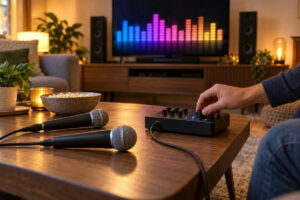
Test one microphone before adding a second. Sing a short phrase while standing in the usual spot. Then connect a wired microphone if the machine supports one and compare the direct voice. A clear improvement tells you where to focus next. If both microphones lag by a similar amount, examine the mixer or speaker processing before blaming either microphone. Keep batteries charged and connections secure; intermittent dropouts are a different problem from consistent delay.
Do not try to mask a delayed voice by raising microphone gain. Higher gain changes loudness and may increase feedback. Shure’s feedback guidance explains that speaker placement, microphone placement, and excessive gain all affect feedback. Solve timing first, then balance the voice and music at a comfortable volume.
When the lyrics, rather than the sound, are late
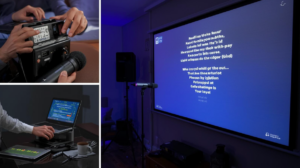
If the singer hears a responsive voice and a steady beat but the words arrive late on the screen, the audio chain may be fine. Restart the karaoke app, check whether the song file or stream itself has a timing adjustment, and compare another song. If only one track is wrong, a track-specific lyric offset may be the appropriate control. If every track is wrong, look at the display chain and any TV picture processing modes that the manual says affect responsiveness.
Keep the source and screen connected in a straightforward way for the test. Remove unnecessary adapters or casting steps one at a time, if your devices allow it. If a direct connection improves the lyric timing, add components back individually until the problem returns. This method is slower than changing every menu, but it gives you a useful answer about the cause.
A quick troubleshooting order
- Play one familiar line and decide whether the voice, music, or lyrics are late.
- Mute any duplicate speaker output and turn off effects for the test.
- Draw the music, microphone, and video paths, marking wireless links.
- Compare a supported wired audio route with the current wireless route.
- Adjust the sync control that actually affects the delayed path, one step at a time.
- Test one microphone, then add the second and any desired effects.
- Save the working settings and check another song.
A good karaoke setup does not need a complicated rack of equipment. It needs a clear path from the song to the speaker, a responsive voice path, and lyrics that arrive at the right moment. Diagnose the lag before turning knobs, and keep the simplest connection that lets everyone sing comfortably.