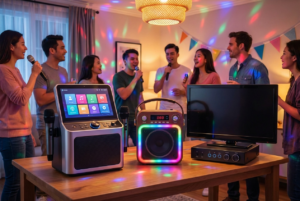
Putting karaoke lyrics on TV can make a living-room singalong easier for everyone to follow. A larger screen lets singers look up instead of leaning over a phone, and it gives the next person a chance to see where the song is going. The setup can be straightforward, but the phone, TV, karaoke app, music output, and microphones each have a role. Decide which device shows the words and which device plays the music before you connect anything.
This guide covers practical display routes, a short soundcheck, and common reasons a screen stays blank or feels hard to read. Device and app features vary, so check the instructions for your specific model. Apple’s AirPlay support guide and Google’s Cast support guide explain the requirements for their respective wireless display paths. Neither guide guarantees that every karaoke app supports every TV.
Pick the screen route before the party
There are three common ways to show karaoke lyrics on TV: run an app directly on the television or a connected streaming device, send a supported app from a phone or tablet to the TV, or connect a computer or other source by a compatible cable. Each route has a different control point. If the TV runs the app, guests may use the remote. If a phone sends the picture, the phone owner controls the queue. If a laptop is connected, someone may need to manage its notifications and sleep settings.
Start with what you already own. Confirm that your preferred karaoke app can display lyrics on that device and that the songs you want are available there. A TV having AirPlay or Google Cast does not make an app compatible by itself. Some apps provide a Cast or AirPlay button; others may allow screen mirroring; some restrict particular content or outputs. Test a real song rather than relying on a menu icon.
Choose one route for the first soundcheck. If it works, keep it as the main setup. A backup route is useful, but changing between several devices during a party can lead to the wrong input, wrong speaker, or two active versions of the same track.
Use a TV or streaming-device karaoke app
Look in the TV’s app store or the connected streaming device’s app list for your chosen service. Install or open it, sign in if needed, and play a short sample. Check that the lyrics are readable from where people will stand. A very small font may be fine at the sofa and difficult across the room. If the app offers display settings, choose a legible size and strong contrast without obscuring the current line.
Check how the TV sends sound. It may play through its built-in speakers, a soundbar, or a receiver. If your microphones run through a separate karaoke machine, decide whether music and voice meet in one speaker system. Two independent speaker systems can make balancing difficult, even when the lyrics look fine. Follow the manuals for your equipment’s supported connections.
Make sure you can move to the next song without blocking the lyric display with a large menu for too long. Try searching, queuing, pausing, and skipping before guests arrive. Keep account details private; a party should not require sharing a personal password with each singer.
Cast from a phone or tablet
If your app supports Google Cast, Google’s instructions say the source device and compatible TV or streaming device should be on the same Wi-Fi network. Open the Cast-enabled app, tap its Cast control, choose the intended display, and test playback. The Cast button can appear in different places across apps. If it does not appear, check whether the app supports casting and whether the source device is on the correct network before restarting all the equipment.
For an iPhone or iPad with a compatible AirPlay destination, Apple’s instructions also require the devices to share a Wi-Fi network. A supported app may offer an AirPlay button for video, or the device may offer screen mirroring. AirPlay playback and mirroring are not identical: one sends supported content, while the other shows the device screen. Test which option presents the lyrics cleanly and which keeps notifications off the television.
Put the control device on charge. Turn on a focus or do-not-disturb setting if you are mirroring the whole screen, and close private tabs before connecting. Leave enough battery and network stability to finish the set. If the connection drops, reconnect to the same TV and replay a familiar lyric section before inviting the next singer.
Connect a computer or source by cable
A compatible cable can be a simple option when wireless display is unreliable. Identify the source device’s video output and the TV’s matching input, then select that input on the television. A laptop may need a supported adapter. Use the manufacturer’s instructions for the exact ports and settings; a connector that fits physically does not always carry the signal you expect.
Once the picture appears, decide whether to mirror the computer’s screen or extend the desktop. Mirroring can be simpler because the operator and singers see the same thing. An extended display can let the operator manage a song queue privately while the TV shows only lyrics, if the app supports moving its playback window. Try both before choosing. Set the computer to stay awake for the event and hide personal notifications.
Now test sound. Select the intended audio output in the computer and app, then mute any duplicate TV or external speakers. A video connection may carry audio as well, but your microphone mixer could still use a different path. Write down which device controls music volume and which controls microphone volume so you can adjust the right one later.
Make lyrics readable from the singing spot
Stand where a singer will stand and read a verse, not just the large title screen. Move the TV or singer position if a reflection covers the words. Avoid placing a bright lamp directly behind the display. Increase text size where the app permits it, or reduce the distance between singer and screen without blocking the audience’s view. Darker surroundings can help a display stand out, but keep enough light for people to move safely.
Check line wrapping and timing. A long lyric line may run across the edge of a narrow mirrored phone view. Rotating a phone to landscape or choosing the app’s full-screen view may help. If the lyric timing is wrong on only one song, try another version or a track-specific offset if the app provides one. If every song is off, compare the picture and sound paths before changing a global setting.
Plan for singers who do not want to stare at a screen. A music stand or smaller second display may help if supported by the app. Keep the main screen clear and avoid displaying an unrelated video, advertisement, or incoming message over the words during someone’s turn.
Run a complete soundcheck, not just a picture check
Play a familiar song, sing one verse, and listen from the usual audience area. Check four things: the words are legible, the music is audible, the microphone is clearly heard, and the singer does not notice a distracting delay. If the TV and an external speaker both play the track, turn off one output and test again. Raise microphone level only after the duplicate output is gone.
Test every microphone you plan to use. Hand one to a second person and have both sing at normal volume. A setup that sounds fine with one mic may become crowded or prone to feedback with two. Keep the speakers positioned so the microphones are not pointed at them. Shure’s feedback guide identifies speaker and microphone placement, excessive gain, and too many open microphones as common contributors to feedback.
If audio and lyrics drift apart, test a supported wired connection or the relevant TV sync control. Sony’s Bluetooth troubleshooting guide notes that wireless output can be out of sync with a TV picture on certain devices and describes model-specific adjustments. Change one setting at a time and replay the same verse. Do not assume a control for TV-to-speaker sync also changes the microphone path.
Fix the most common display problems
TV is blank: Confirm that the TV is on the right input or that the casting destination is the intended device. Check the cable seating or the app’s connection indicator. If you are using wireless display, confirm that the source and destination share the required network.
Picture appears but no music plays: Check the selected audio output in the source device, app, TV, and sound system. Mute unused outputs rather than turning every volume control up. If your karaoke mixer receives music separately, confirm that the source is connected to the correct input.
Lyrics appear on the phone but not the TV: Some apps have a separate full-screen lyric view, while others limit external display. Verify the app’s support documentation. Try a supported mirroring option, then test another track. If the display shows only a logo or control screen, do not assume the song video is being sent.
The singer sees private alerts: Stop mirroring, activate a focus setting, close personal windows, and reconnect. Use a dedicated device or a direct TV app if managing privacy on a personal phone feels awkward.
A short setup checklist
- Choose the app and one display route: TV app, wireless, or cable.
- Confirm the app supports that route with a real song.
- Connect the screen and select the correct TV input or destination.
- Choose one music speaker path and test one microphone.
- Stand at the singing spot and check lyric size, glare, and timing.
- Try a second microphone and one full verse.
- Save the working input and volume settings for next time.
Karaoke lyrics on TV are most useful when the setup disappears into the background. Keep the screen clear, give one person control of the queue, and test the complete path from song to screen to speaker before the first guest sings. A simple, repeatable setup beats a collection of features you have not tried together.