Fire Stick karaoke offers a convenient way to bring songs, lyrics, and entertainment to your television. However, apps may freeze, microphones may not work, or sound can fall out of sync. Fortunately, many common problems have simple fixes that do not require replacing your equipment.
A Fire TV Stick works primarily as a streaming device rather than a complete karaoke machine. Therefore, your microphone, speaker, television, and karaoke service must work together correctly. Understanding this distinction makes troubleshooting much easier.
Before changing advanced settings, identify exactly what has stopped working. Test the app, television sound, internet connection, and microphone separately. This method helps you find the actual problem instead of changing several unrelated settings.
Understand How Your Karaoke Setup Works
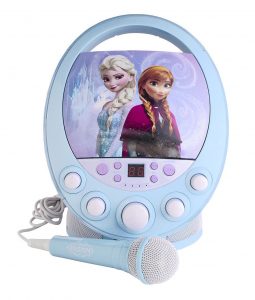
A typical home arrangement uses the Fire TV Stick to display karaoke videos or compatible apps on a television. The television or external speaker then handles the backing music. Meanwhile, microphones usually need their own compatible karaoke speaker, mixer, receiver, or other audio equipment.
This matters because connecting a microphone directly to your streaming device is not always supported. Many users expect the Fire TV Stick to mix live vocals with streamed music automatically. However, that function usually requires additional compatible audio hardware.
When Fire Stick karaoke stops working, first determine which part has failed. If videos will not play, investigate the app or network. If the music works but your voice does not, focus on the microphone path instead.
Draw a simple mental map of your connections. Identify where the backing track originates, where lyrics appear, and where microphone audio enters the system. Once each device has a clear role, troubleshooting becomes much faster.
Also, check the instructions for your specific Fire TV Stick, television, and audio equipment. Available settings can differ between generations and manufacturers. Using instructions for the exact devices you own prevents unnecessary changes.
Restart Your Fire TV Stick First
Restarting should be one of your first steps when apps suddenly stop loading or responding. Temporary software problems can develop after long periods of use. A proper restart clears many of these minor issues.
Use the Fire TV settings menu to restart the device when possible. Alternatively, follow Amazon’s current instructions for restarting your specific model. Give the device enough time to boot fully before reopening your karaoke service.
If Fire Stick karaoke worked normally yesterday but suddenly fails today, a restart is especially worthwhile. Restart the television and relevant audio equipment as well if the problem continues. Then test the same song again.
Avoid changing several settings immediately after restarting. Instead, check whether the original problem remains. If playback works again, you may have solved the issue without altering your configuration.
You can also restart your router if multiple streaming apps show connection problems. Wait until Wi-Fi returns before testing again. This simple sequence can resolve temporary communication issues across the setup.
Check Your Wi-Fi and Internet Connection
Streaming karaoke depends heavily on a stable internet connection. A weak connection may cause songs to buffer, freeze, or drop to lower quality. It can also make an app appear broken when the actual problem is your network.
Try another streaming service on the Fire TV Stick. If several applications buffer or fail to load, your karaoke app probably is not the only issue. Check whether other household devices are experiencing similar problems.
Fire Stick karaoke may become less reliable when many devices use the network simultaneously. Large downloads, online gaming, and high-resolution streaming can increase network demand. Therefore, pause unnecessary activities during your troubleshooting test.
Router placement can also influence wireless performance. Walls, floors, furniture, and distance can weaken the signal reaching your television area. Improving router placement or network coverage may provide more stable playback.
Do not assume a fast internet subscription automatically guarantees strong Wi-Fi everywhere. Local wireless conditions matter too. Test the connection near your television before blaming the karaoke application.
Fix a Karaoke App That Will Not Open
An application that refuses to launch may have temporary data or software problems. Start by closing the app and reopening it. If that fails, restart your Fire TV Stick before trying anything more complicated.
Next, check whether the app has an available update. Older versions may develop compatibility problems after platform changes. Keeping supported applications current can also provide bug fixes and performance improvements.
When Fire Stick karaoke fails inside one specific application, test another streaming app. If everything else works, focus your troubleshooting on the karaoke service. Check its official support resources for outages or known compatibility issues.
Clearing an application’s cache may help in some situations. Fire TV settings provide application management options, although menu names can vary by software version. Follow current Amazon guidance before clearing data or changing application settings.
Reinstalling should generally come after simpler fixes. Removing an application may erase stored settings or require you to sign in again. Make sure you know your account credentials before deleting anything.
Troubleshoot Missing Microphone Sound
A common problem occurs when the backing track plays perfectly but nobody can hear the singer. In many cases, this happens because the microphone is not actually routed through the audio system. Streaming music and live vocals often follow separate paths.
Check where your microphone connects. A compatible karaoke machine, mixer, amplifier, or powered speaker may handle the live vocal signal. Follow the manufacturer’s instructions for the specific microphone and audio equipment you use.
Fire Stick karaoke does not automatically mean the Fire TV Stick itself processes microphone audio. Instead, the streaming device may simply provide lyrics and backing music. Your audio equipment can handle the singer separately.
If you use a wireless microphone, check its battery and receiver. Confirm that both components are powered and properly paired according to their instructions. Then test the microphone without the karaoke track playing.
Start with low or moderate volume when restoring the microphone signal. Once you hear the voice clearly, balance it against the backing music. This approach reduces the risk of sudden loud feedback.
Fix Sound That Comes From the Wrong Device
Sometimes the karaoke track plays through the television while microphone vocals come from another speaker. This arrangement can work, but the two sound sources may feel disconnected. Volume balance can also become difficult.
First, decide where you want the main music to play. Then determine whether your audio equipment can accept the television’s audio output alongside microphone input. The available connection methods depend on your television and karaoke equipment.
A Fire Stick karaoke arrangement becomes easier when the signal path stays simple. Every additional adapter, wireless connection, or audio device introduces another possible failure point. Therefore, use only the equipment you actually need.
If you use a soundbar, confirm that your television sends audio to it correctly. Test ordinary Fire TV content before adding microphones. Once regular playback works, troubleshoot the vocal system separately.
Avoid assuming that every speaker supports microphone mixing. Many consumer Bluetooth speakers are designed only for music playback. A karaoke-oriented speaker or mixer usually provides more suitable microphone controls.
Reduce Audio and Lyric Delay
Timing problems can make karaoke frustrating even when every device technically works. Lyrics may appear before the sound, or your live voice may feel delayed. These problems can come from different parts of the audio chain.
Start by playing a familiar track through your television speakers. Watch the lyrics and compare them with the recorded vocals. If they match, add your external audio equipment one component at a time.
Some Fire Stick karaoke setups develop noticeable delay when televisions or soundbars apply extra processing. Surround effects and other enhancements may add latency. Try a simpler sound mode when your equipment provides that option.
Bluetooth audio can introduce additional delay as well. If timing improves with a compatible wired connection, wireless latency may be contributing to the problem. This difference becomes more noticeable during singing than ordinary music listening.
Live microphone delay should be tested separately. Route the microphone through the simplest compatible audio path available. Then add echo or other vocal effects only after the timing feels comfortable.
Check HDMI and Television Settings
A blank screen or intermittent picture may have nothing to do with your karaoke app. Your television could simply be using the wrong HDMI input. Confirm that the Fire TV Stick’s input is selected before troubleshooting software.
If you use an external Fire TV Stick, check its HDMI connection and power supply. Make sure the device is seated securely and receives appropriate power. Follow Amazon’s instructions for your specific model rather than using random adapters.
Fire Stick karaoke can also be affected indirectly by television audio settings. If the picture appears normally but sound is missing, test other Fire TV content. This helps determine whether the problem affects the whole device or only karaoke playback.
Review your television’s selected audio output. It may be sending sound to internal speakers, HDMI ARC or eARC equipment, optical audio, or another connected device. Choose the output that matches your intended setup.
When testing connections, change one setting at a time. Write down the original value if necessary. This makes it easier to reverse a change that creates another problem.
Free Storage and Improve Device Performance
Streaming devices can become sluggish when storage is limited or many applications compete for resources. Menus may respond slowly, apps may close, and playback can become less reliable. Basic maintenance can help restore smoother operation.
Remove applications you no longer use if storage is running low. However, do not delete important apps simply because they have not been opened recently. Check your device’s storage information first.
If Fire Stick karaoke frequently freezes alongside other applications, general device performance deserves attention. Restart the Fire TV Stick and install available system updates. Then test ordinary streaming before reopening karaoke.
Avoid installing unnecessary third-party utilities that promise dramatic speed improvements. Unsupported software can create additional problems or security concerns. Standard device maintenance is usually the safer starting point.
Older hardware may also have different performance limits than newer models. Nevertheless, do not assume age is automatically the cause. Network conditions, software, and individual applications should still be tested separately.
Check Your Karaoke Service and Account
Some playback failures come from the karaoke service rather than your hardware. Your subscription may have expired, an account session may need refreshing, or specific content may be unavailable. Therefore, confirm that your account works on another supported device.
Try signing into the service on your phone or computer. Play the same track if possible. If it also fails there, your Fire TV Stick may not be responsible.
Fire Stick karaoke applications can also change features over time. Song availability, subscriptions, supported devices, and casting options may be updated by service providers. Check current official information rather than relying on an old tutorial.
If you decide to sign out, make sure you know your login credentials first. Then sign back in and test the service. Avoid creating a new account unless you actually need one.
For subscription problems, use the service’s official account management tools. Do not enter payment details into unfamiliar troubleshooting websites. Keeping account management separate from technical experimentation reduces unnecessary risk.
Build a More Reliable Party Setup
Test everything before guests arrive. Start a full karaoke track, check the lyrics, and sing through each microphone at realistic volume. A five-minute test can prevent a much longer interruption later.
Keep your Fire Stick karaoke arrangement as simple as possible. One television, one streaming source, and one suitable karaoke audio system can cover most home gatherings. Extra equipment should serve a clear purpose.
Charge wireless microphones before the party. If they use replaceable batteries, keep the correct replacements nearby. Also, make sure remotes and other wireless accessories have enough power.
Prepare a playlist or list of popular songs in advance. Searching after every performance creates unnecessary pauses. Guests can still make requests, but a prepared selection keeps the evening moving.
Finally, keep drinks away from electronics and power connections. Route cables away from walking areas. Good organization improves both reliability and safety without requiring expensive accessories.
Use a Simple Troubleshooting Order
When something fails during a party, use the same troubleshooting sequence every time. First, determine whether the television and Fire TV Stick work normally. Next, check the karaoke application and internet connection.
After that, test the backing music without microphones. If it plays correctly, investigate the microphone and external audio system. Separating these components prevents confusion.
For Fire Stick karaoke problems involving sound, check the television’s audio output before changing microphone settings. If the television has no sound at all, the microphone is probably not your first concern. Likewise, clear backing music with missing vocals points toward the microphone path.
If an app freezes, restart it before restarting the entire system. If several apps fail, restart the Fire TV Stick and investigate your network. This logical order reduces unnecessary changes.
Keep a note of the configuration that works. You can even photograph cable connections before moving equipment. That reference can make your next karaoke night much easier to prepare.
Conclusion
A Fire TV Stick can provide a convenient source for karaoke videos, apps, and on-screen lyrics. However, it should be viewed as one part of the complete setup. Microphones and live vocals often require separate compatible audio equipment.
Most Fire Stick karaoke problems become easier to solve when you separate streaming, video, music, and microphone functions. Restart the device, test Wi-Fi, check applications, and verify television audio first. Then troubleshoot your microphone and external speakers independently.
Keep the overall system simple and test it before guests arrive. Reliable connections and clear audio matter more than adding numerous accessories. With a straightforward setup and consistent troubleshooting routine, you can spend less time fixing equipment and more time enjoying the songs.
FAQ
1. Why does my microphone not work with my Fire TV Stick?
A Fire TV Stick primarily handles streaming and may not directly process your live microphone signal. Your microphone may need a compatible karaoke speaker, mixer, receiver, or other audio device. Check the instructions for your specific microphone equipment.
2. Why does the karaoke video play without sound?
First, test another Fire TV video to see whether all audio is affected. Then check your television’s selected audio output and connected sound equipment. Restarting the streaming device may also resolve temporary audio problems.
3. Can I use a Bluetooth microphone for home karaoke?
Compatibility depends on how the microphone and its receiver handle live audio. Bluetooth alone does not guarantee that vocals will mix with streamed music. A dedicated karaoke speaker or mixer can provide a more suitable setup.
4. Why are my karaoke lyrics and music out of sync?
Audio processing from televisions, Bluetooth devices, or soundbars can create noticeable delay. Test the track through your television speakers first. Then reconnect external audio devices one at a time to identify where latency begins.
5. What is the easiest Fire TV karaoke arrangement?
Keep the streaming and live vocal systems straightforward. Use the television for lyrics and backing tracks, then use compatible karaoke audio equipment for microphones. Test every connection before your singing session begins.