There’s nothing more frustrating than getting ready for a fun karaoke session only to be met with a silent microphone or distorted sound. Knowing how to troubleshoot karaoke machine problems can save your performance night and extend the life of your equipment. At BestKaraokeMachine.net, we believe in empowering our readers with practical, human-reviewed solutions, especially in an era where authenticity and trust are vital amidst AI-generated content. Let’s tackle common issues together, leveraging our expertise to get you back to singing.
No Sound from Microphone or Speakers?
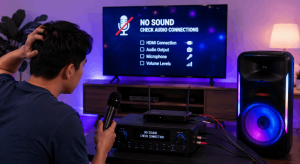
This is perhaps the most common issue, and often the easiest to fix. Many times, a simple oversight can lead to a complete lack of audio. Therefore, a systematic approach is best when diagnosing sound issues. Consider these steps before assuming a major malfunction.
1. Check All Connections
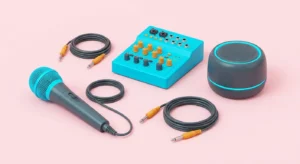
- Cables: Ensure all audio cables (XLR, 1/4 inch, RCA) are securely plugged into the correct input/output jacks on both your microphone, machine, and speakers. Loose connections are a frequent culprit. In fact, even a slightly dislodged cable can prevent sound transmission.
- Bluetooth Pairing: If using wireless microphones or streaming audio via Bluetooth, confirm that devices are correctly paired and within range. Sometimes simply unpairing and re-pairing can resolve connectivity glitches. Furthermore, check for any obstructions between the devices that might interfere with the signal.
2. Power and Batteries
- Machine Power: Is your karaoke machine plugged in and turned on? Check power indicators. It might seem obvious, but it’s easily overlooked.
- Microphone Batteries: For wireless microphones, fresh batteries are crucial. Always have spares on hand. Weak batteries often cause intermittent sound or no sound at all.
- Speaker Power: If using external powered speakers, ensure they are plugged in and switched on. Similarly, confirm their volume is not set to zero.
3. Volume Settings
- Master Volume: Check the main volume knob on your karaoke machine. Ensure it’s turned up to an audible level.
- Microphone Volume: Many machines have a separate volume control for microphones. Ensure it’s not muted or too low. Consequently, your voice won’t be heard if this is neglected.
- Device Volume: If streaming from a phone or tablet, check its volume settings. Often, the external device’s volume can override the machine’s.
Echo, Feedback, or Distorted Audio
These issues can ruin a performance, but they are usually fixable with a few adjustments. Feedback, specifically, is a common nuisance that can be quite jarring. Distorted audio, on the other hand, makes singing unpleasant. Fortunately, several strategies can help improve karaoke sound quality.
1. Microphone Placement and Gain
- Distance from Speakers: Keep microphones away from speakers to prevent feedback (that piercing squeal). Never point a live mic directly at a speaker. This is a fundamental rule for audio setups.
- Microphone Gain: If your machine has a ‘Gain’ or ‘Mic Level’ knob, adjust it. Too high can cause distortion and feedback, too low can make your voice faint. Find the sweet spot. A good starting point is usually around the halfway mark.
- Room Acoustics: While portable systems are convenient, rooms with many hard surfaces can create excessive echo. Consider adding rugs or curtains to absorb sound. This simple change can significantly improve the audio experience.
2. EQ Settings
- Over-EQing: Too much bass or treble can lead to distortion. Try resetting your equalizer to flat and adjusting incrementally to improve karaoke sound quality. Subtlety is key when adjusting EQ.
- Pre-set Modes: Some machines offer pre-set EQ modes. Experiment with these to find one that suits your environment.
3. Cable Quality
- Damaged Cables: Frayed or faulty cables can introduce static or distortion. Test with a different cable if you suspect an issue. High-quality cables can make a noticeable difference.
- Interference: Ensure audio cables are not running parallel to power cables, which can cause electromagnetic interference.
Connectivity Glitches (Bluetooth, Wi-Fi, App)
As smart integration becomes more prevalent, connectivity issues can arise. These problems can be frustrating, especially when you are trying to stream music or control your machine remotely. However, many common connectivity problems have straightforward solutions. You can easily troubleshoot karaoke machine problems related to wireless connections.
1. Bluetooth Troubleshooting
- Re-Pair Devices: If your Bluetooth device isn’t connecting, try unpairing it from your karaoke machine and then re-pairing. This often resets the connection.
- Clear Cache: On your streaming device (phone, tablet), clear the Bluetooth cache if available. This can resolve persistent pairing issues.
- Firmware Updates: Check if your karaoke machine or Bluetooth device has firmware updates. Sometimes, updates include bug fixes for connectivity.
- Interference: Bluetooth signals can be affected by other wireless devices, such as Wi-Fi routers or microwaves. Try moving your machine and connected device away from these potential sources of interference.
2. Wi-Fi and App Issues
- Router Check: Ensure your Wi-Fi router is working correctly and that your karaoke machine is within its range. A weak signal can prevent app functionality.
- App Updates: Confirm that your karaoke app is updated to the latest version. Developers frequently release updates to fix bugs and improve performance.
- Reinstall App: If an app is consistently crashing or failing to connect, try uninstalling and reinstalling it. This can clear corrupted data.
- Device Compatibility: Verify that your smart device (phone/tablet) is compatible with the karaoke app and machine. Older operating systems might not support newer app versions.
Video Output Problems: No Picture or Poor Quality
A karaoke experience isn’t complete without lyrics displayed clearly on screen. When your video isn’t working, it can bring the party to a halt. Luckily, addressing these visual issues is often as simple as checking a few connections or settings. Understanding how to resolve these problems will certainly help you troubleshoot karaoke machine problems effectively.
1. Check Video Connections
- HDMI/RCA Cables: Ensure your HDMI or RCA cables are securely plugged into the correct
Related reading: