If you want a convenient, affordable way to enjoy singing at home, karaoke with smart speakers is one of the easiest options. Smart speakers already help with daily tasks, but they also make surprisingly powerful karaoke tools. With just your voice, your phone, and a playlist, you can turn any room into a fun, wireless karaoke zone—without extra equipment or complicated wiring.
Because smart speakers rely on simple Bluetooth connections and voice commands, almost anyone can set up a karaoke session in minutes.
Why Smart Speakers Are a Game-Changer for Karaoke
Smart speakers have become a staple in modern households, handling everything from alarms to smart-home controls. However, they’re also perfect for casual karaoke because they deliver clear sound, pair easily with mobile devices, and require almost no setup.
When you stream music to your speaker and sing along with lyrics on your phone or tablet, you get a clean, clutter-free karaoke experience. With the right mic or app, you can even enhance your vocals for a more authentic performance.
What You Need to Get Started
One of the best things about karaoke with smart speakers is that you don’t need much equipment. A simple setup can deliver impressive results.
1. A Smart Speaker
Any major smart speaker works well:
Amazon Echo (Dot, Show, Studio)
Google Nest Audio or Nest Mini
Apple HomePod or HomePod Mini
2. A Streaming Device
Use your phone, tablet, or laptop to play karaoke versions of songs. YouTube is the most popular choice, but karaoke apps also work well.
3. A Microphone (Optional but Fun)
A Bluetooth karaoke mic can boost the experience, although you can sing without one.
Step-by-Step: How to Set Up Karaoke with a Smart Speaker
Step 1: Choose Your Karaoke Tracks
Open YouTube or your preferred karaoke app. Search for “karaoke version” of the song you want, such as:
“Shallow karaoke version”
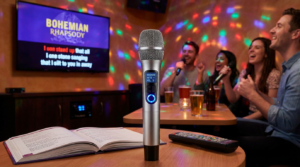
“Bohemian Rhapsody karaoke”
Most karaoke channels display on-screen lyrics.
Step 2: Connect Your Device to the Smart Speaker
For Amazon Echo
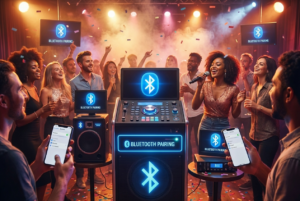
Say: “Alexa, pair Bluetooth.”
Open Bluetooth settings on your phone and select your Echo device.
For Google Nest
Say: “Hey Google, pair Bluetooth.”
Choose your Google speaker from your phone’s Bluetooth menu.
For Apple HomePod
Open AirPlay on your iPhone or iPad
Choose your HomePod as the speaker
Play your karaoke track
Step 3: Adjust the Volume
Keep the smart speaker at medium volume so your vocals are not drowned out. You can adjust the sound on the speaker or by using voice commands.
Adding a Microphone for Extra Fun
Although you can sing without a microphone, using one makes the experience feel more like true karaoke.
Bluetooth Karaoke Microphone
A Bluetooth mic can connect to your phone while the audio plays through your smart speaker.
Steps:
Pair the mic with your phone
Connect your phone to your smart speaker
Play your karaoke track
Sing directly into your mic
Wired Microphone with Adapter
If your phone supports wired headphones, you can connect a wired mic using an adapter. It won’t be as loud, but it still enhances your vocal clarity.
Best Karaoke Apps to Use with Smart Speakers
While YouTube works for most people, these apps provide additional features like pitch correction, vocal effects, and duets:
KaraFun – Large library and offline mode
Smule – Duets, vocal effects, and social features
StarMaker – Community-focused singing app
Yokee – Simple interface and strong free options
Because these apps offer structured karaoke tracks, they often feel more polished than basic YouTube videos.
How to Make Your Smart Speaker Karaoke Night Even Better
Adding a few extras can turn a basic setup into a memorable experience.
Lights and Ambience
Use smart bulbs to change colors with your performance
Create a DIY spotlight using a lamp and colored film
Add LED strips for a stage-like glow
Props and Themes
Dress up like your favorite artist
Use fun accessories like hats, sunglasses, or boas
Set up a backdrop or curtain for a photo-ready stage
These small touches help create an immersive karaoke atmosphere.
Tips for Better Sound and Better Singing
Stand a comfortable distance away from the speaker to avoid feedback
Use a mic stand if you’re recording your performance
Test your volume levels before performing
Practice a warm-up song to get used to the setup
Because smart speakers balance sound automatically, you can achieve clean, enjoyable audio with very little effort.
Why Smart Speaker Karaoke Works for Families and Small Spaces
This setup is ideal for:
Small apartments with limited space
Kids who want easy, hands-free karaoke
Teens who love quick, app-driven singing
Adults who prefer minimalist entertainment
Family gatherings where everyone can join in
Smart speaker karaoke keeps equipment to a minimum—perfect when storage is limited or spontaneity is part of the fun.
Conclusion
Smart speakers do more than control your music or check the weather—they make karaoke effortless. With just a phone, a playlist, and a simple Bluetooth connection, you can host an instant karaoke party without wires, mixers, or bulky machines. Whether you’re singing alone or entertaining guests, the setup is fast, clean, and surprisingly powerful.
All you need to do is pick your song, connect your device, and let the music flow.
FAQs
1. Can I connect a microphone directly to a smart speaker?
Not directly. Most smart speakers don’t support mic input, but you can use a Bluetooth mic paired with your phone.
2. Is YouTube the best source for karaoke tracks?
Yes. It offers the largest collection of free karaoke videos with on-screen lyrics.
3. Can smart speakers play karaoke using voice commands?
If your music service supports karaoke tracks, you can request them with voice commands.
4. Does Apple HomePod work for karaoke?
Absolutely. Use AirPlay to stream karaoke tracks from your iPhone or iPad.
5. Is this setup good for parties?
Definitely. It’s perfect for small to medium gatherings because it keeps the setup simple and wireless.